Guide / 01
Getting started
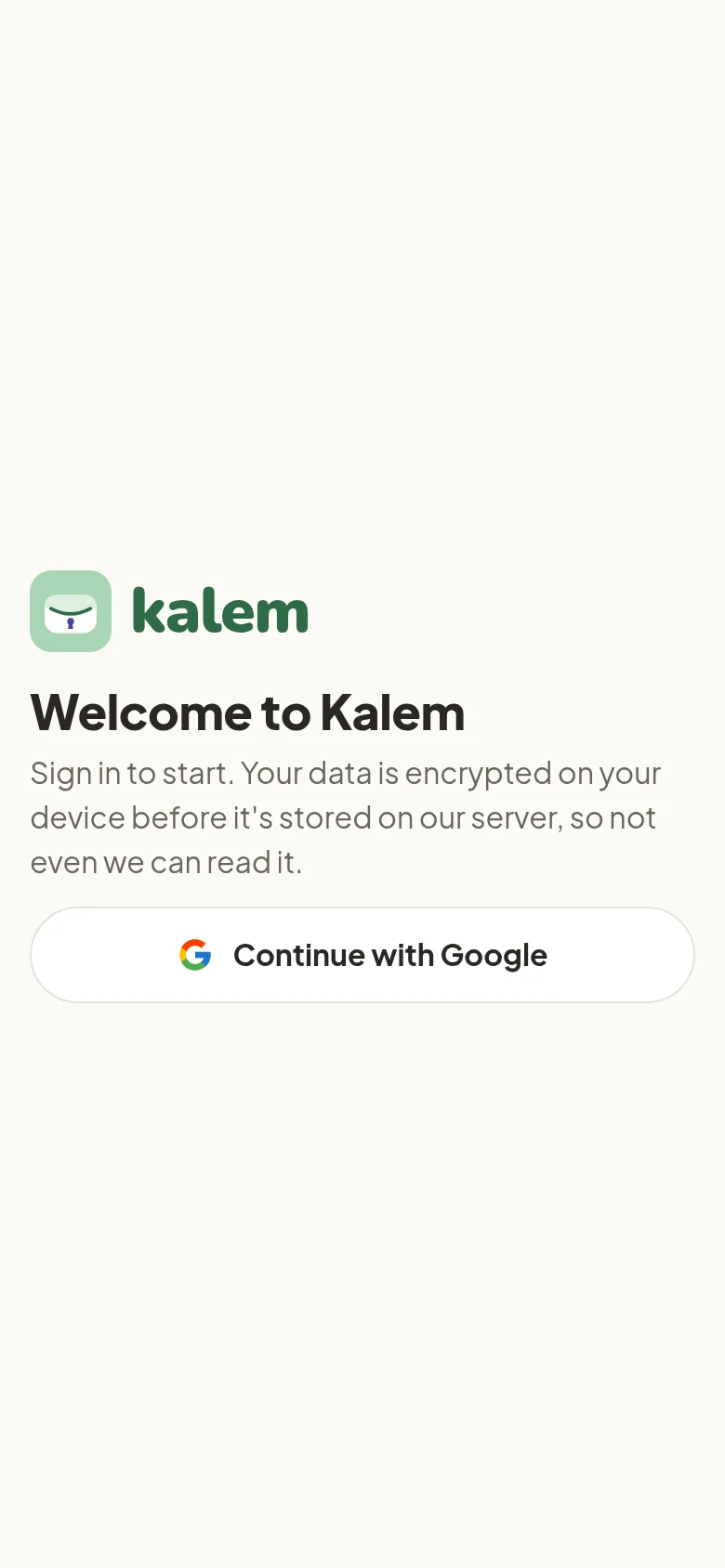
Sign in with Google
Open Kalem in your browser and tap Continue with Google. Kalem has no separate password: it only uses your Google account to know who you are.
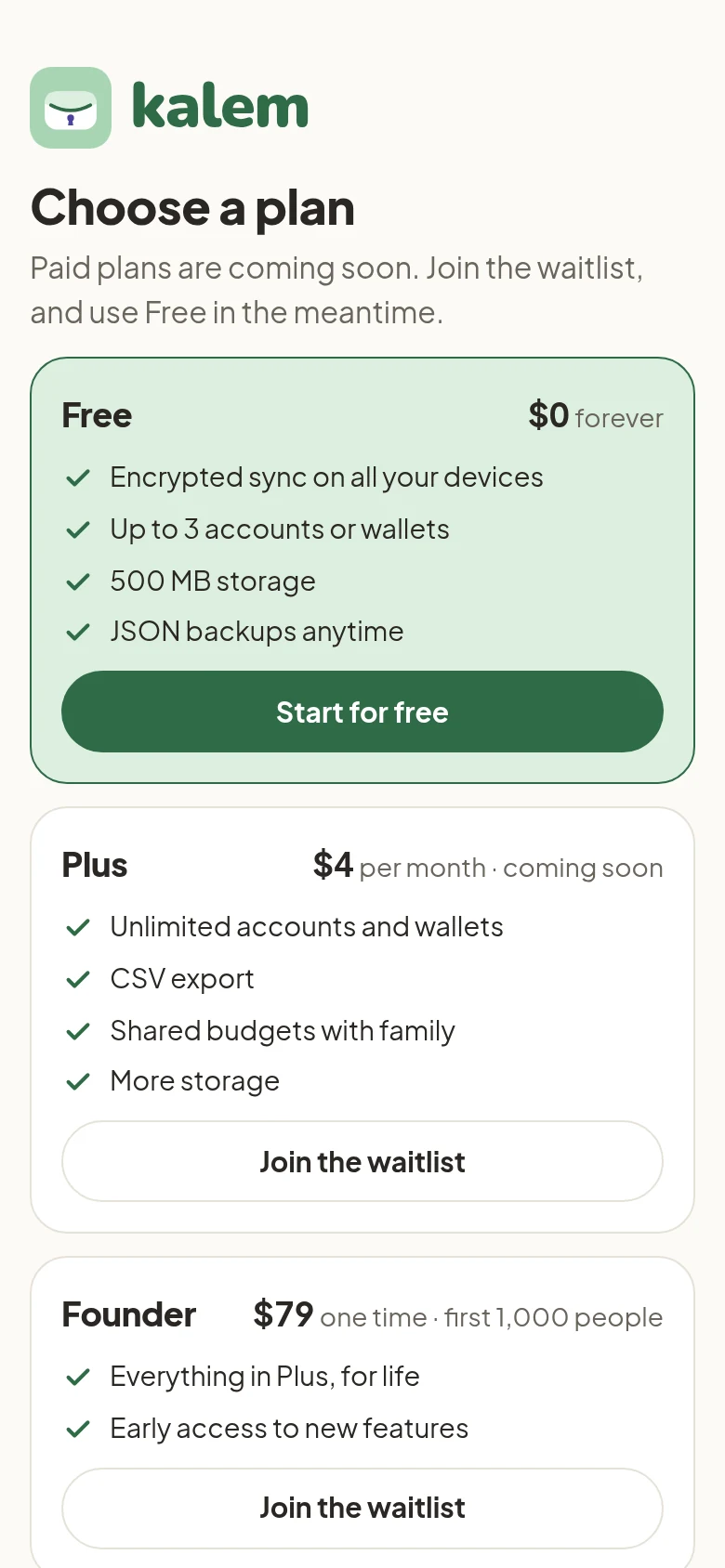
Choose a plan
For now everyone uses the Free plan. If Plus or Founder interests you, tap Join the waitlist. We’ll let you know when they open, and you keep using Free in the meantime.
Save your Recovery Key (important!)
The first time you sign in, Kalem creates a Recovery Key: a string of letters and numbers that is the spare key to your data.
- Tap Copy or Save as file and keep it somewhere safe, like a password manager or a sheet of paper in a drawer.
- We don’t keep this key and can’t recover it. If you lose all your devices and this key, nobody can open your data.
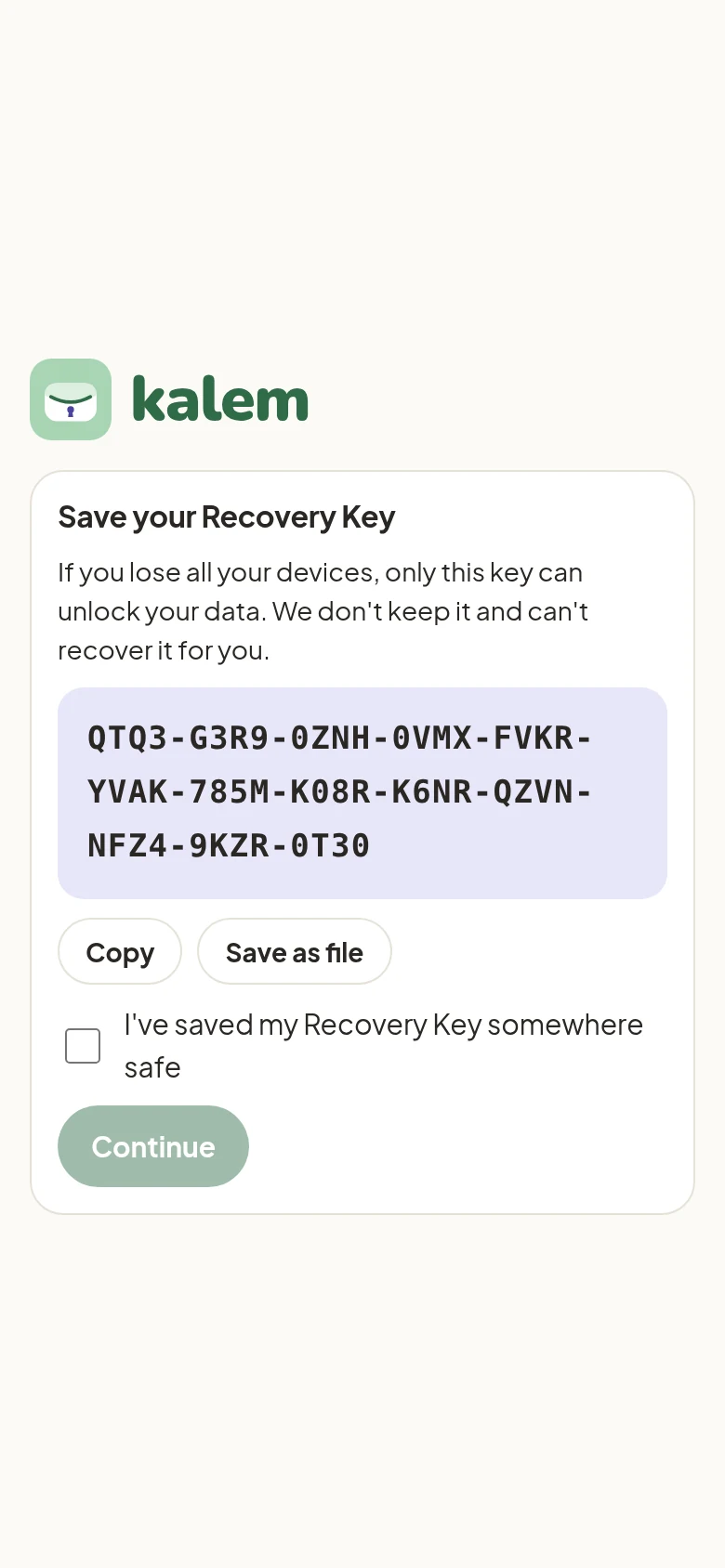
Tick I’ve saved my Recovery Key somewhere safe, then tap Continue.
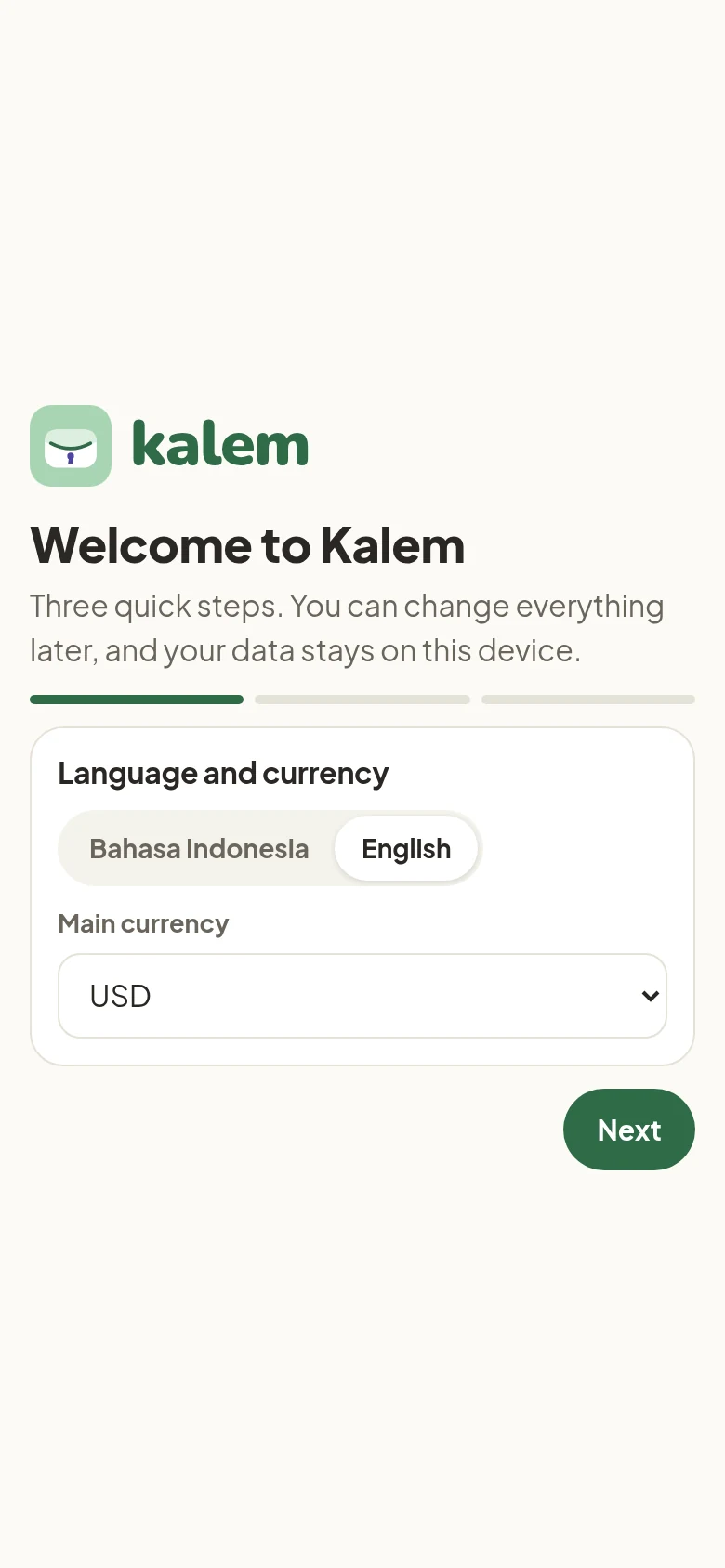
Set up in three steps
-
Language and currency. Choose English or Bahasa Indonesia, and your main currency.
-
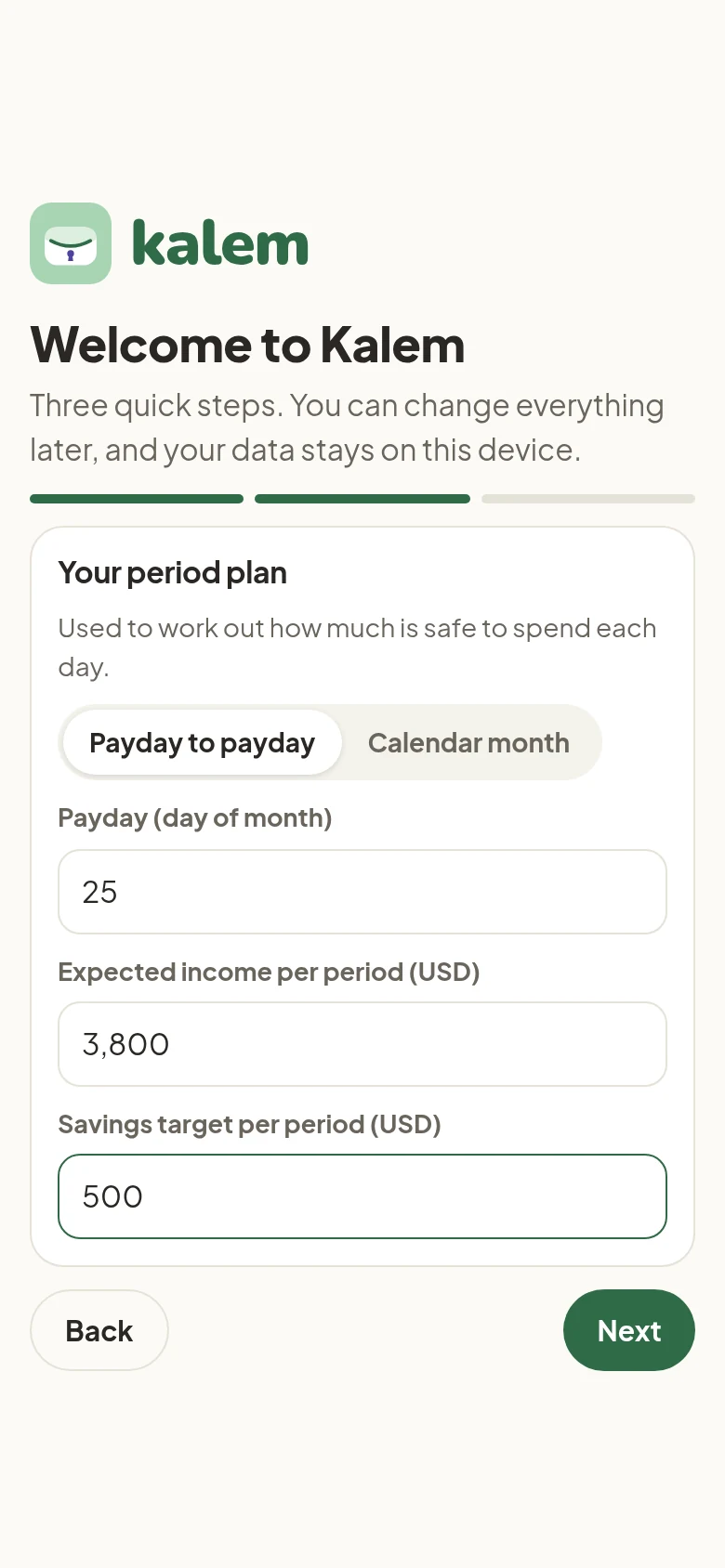
Your period plan. Choose whether your budget runs payday to payday or by calendar month. Add your payday, expected income for the period, and a savings target. You can change all of it later.
-
Accounts you use. Pick the bank accounts, cards, and wallets you use most, like Cash, Checking, or Credit card. The Free plan has up to 3 accounts.
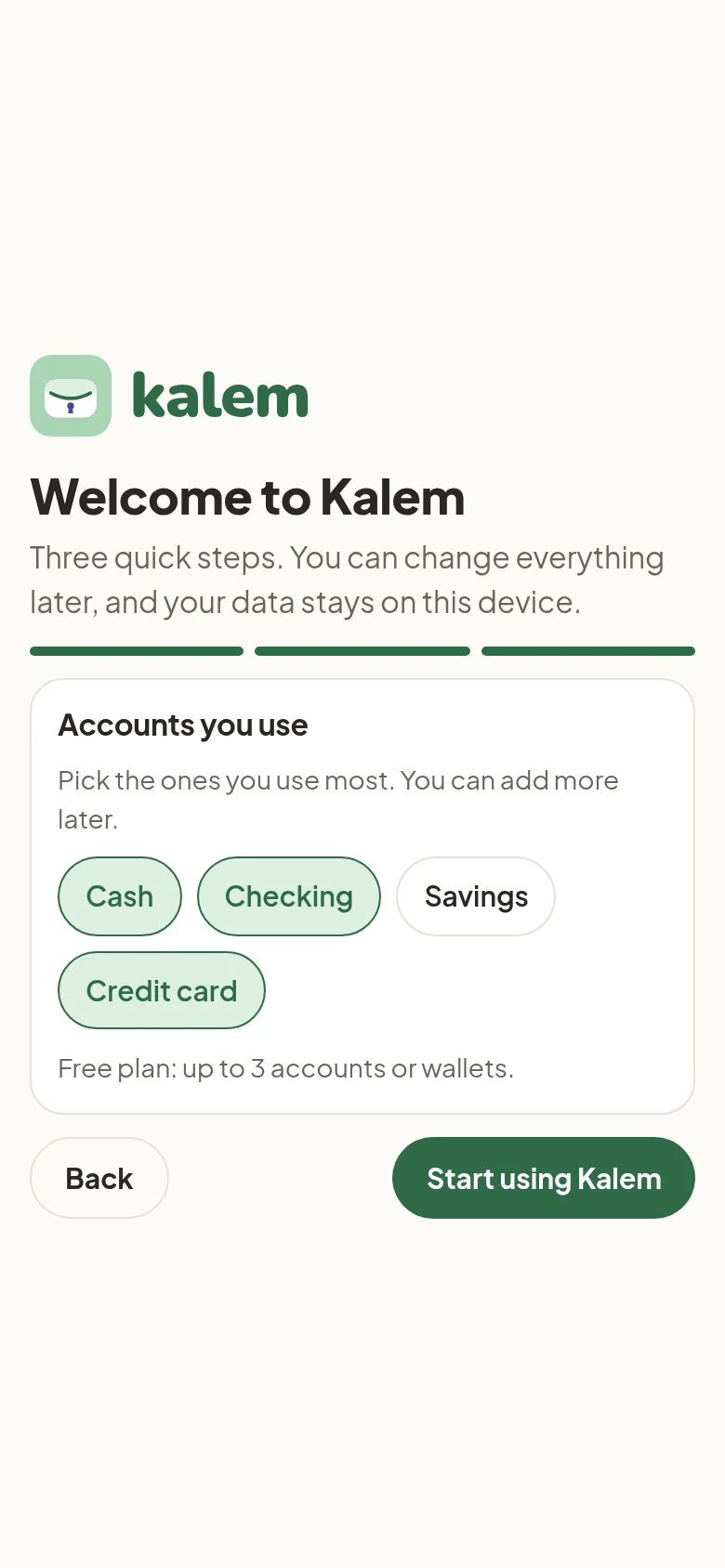
Tap Start using Kalem.
A short tour of Home
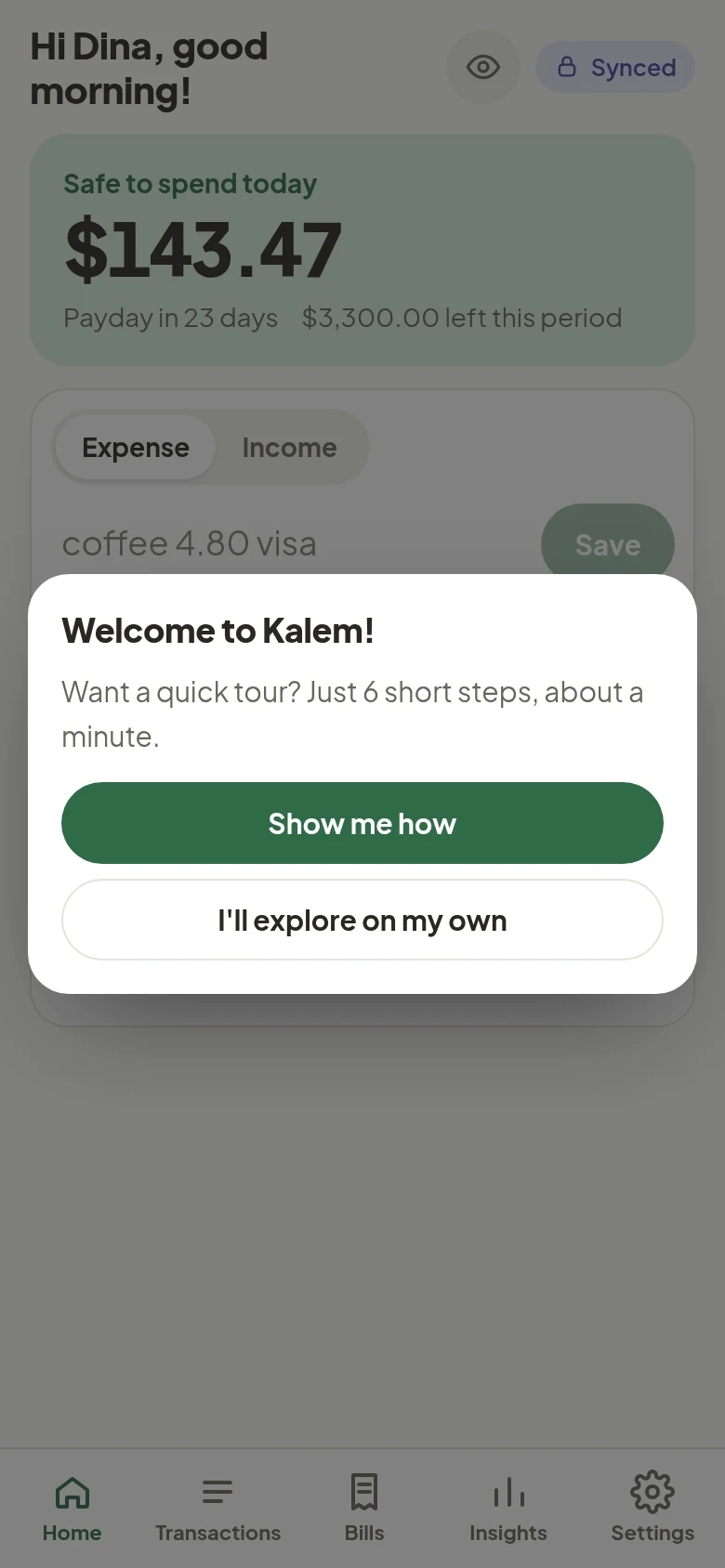
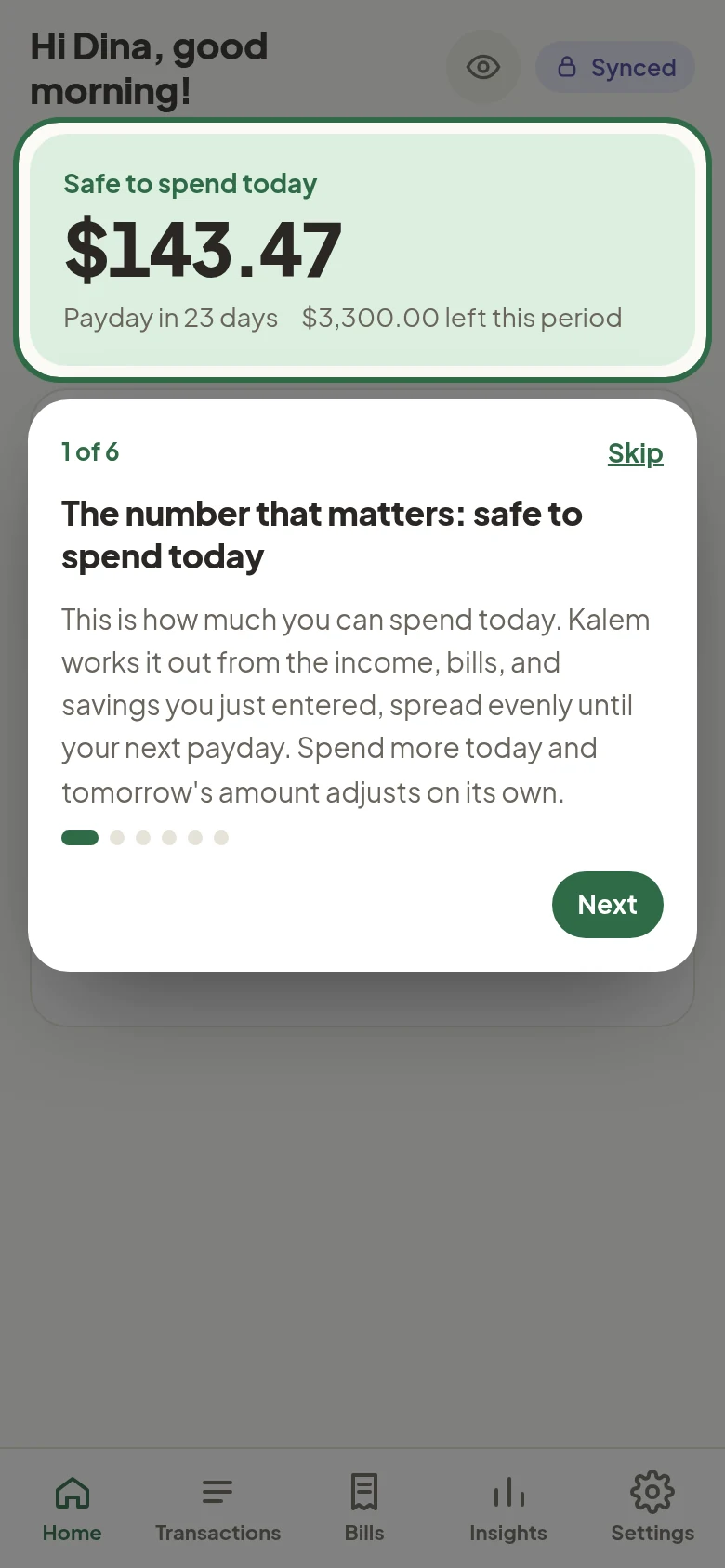
After setup, Kalem offers a 6-step tour:
- Show me how: Kalem highlights the important parts of Home one by one.
- I’ll explore on my own: start right away, without the tour.
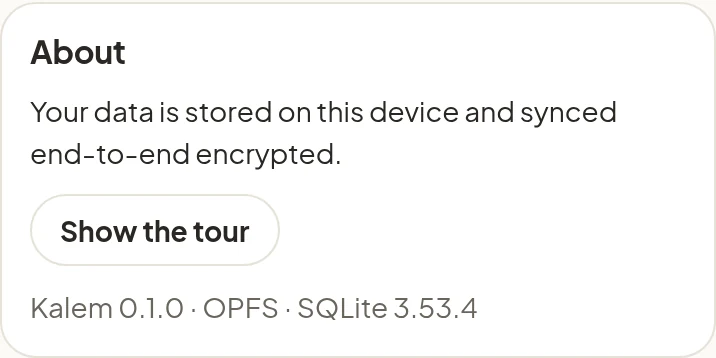
You can open the tour again any time in Settings → About → Show the tour.
| Welcome | One of the steps |
|---|---|
 |
 |